Installation
Install the mrg-iot command-line tool, and the optional media tools used for camera streams.
Everything you do with SPHERE IoT devices is driven by one tool, mrg-iot, which runs on your own machine. This page installs it. Once it is on your PATH, continue with the Quickstart or the full Using mrg-iot guide.
IoT device support is currently in beta. Report issues and share feedback with the NEU IoT Facility.
Requirements
| Requirement | Notes |
|---|---|
| Python 3.9+ | 3.9 through 3.12 are supported and CI-tested. |
| Network access | To the portal (grpc.sphere-testbed.net:443) and the SSH jump host (jump.sphere-testbed.net:2022). |
| VLC | Optional. Only needed for stream open, which launches viewers for you. Any RTSP-capable player works instead. |
| ffmpeg | Optional. Only needed for stream push, which publishes video into the experiment. |
| Wireshark | Optional. Only needed for stream capture, which shows the experiment's live traffic. --write sends it to a file or another tool instead. |
A SPHERE account is not needed to install the tool, only to use it. Account setup is covered in Using mrg-iot §1.
Install mrg-iot
The supported install path is pipx, which puts mrg-iot on your PATH in its own isolated environment:
pipx install mrg-iot
Or into an ordinary virtual environment:
python3 -m venv .venv && source .venv/bin/activate
pip install mrg-iot
Verify
mrg-iot --version
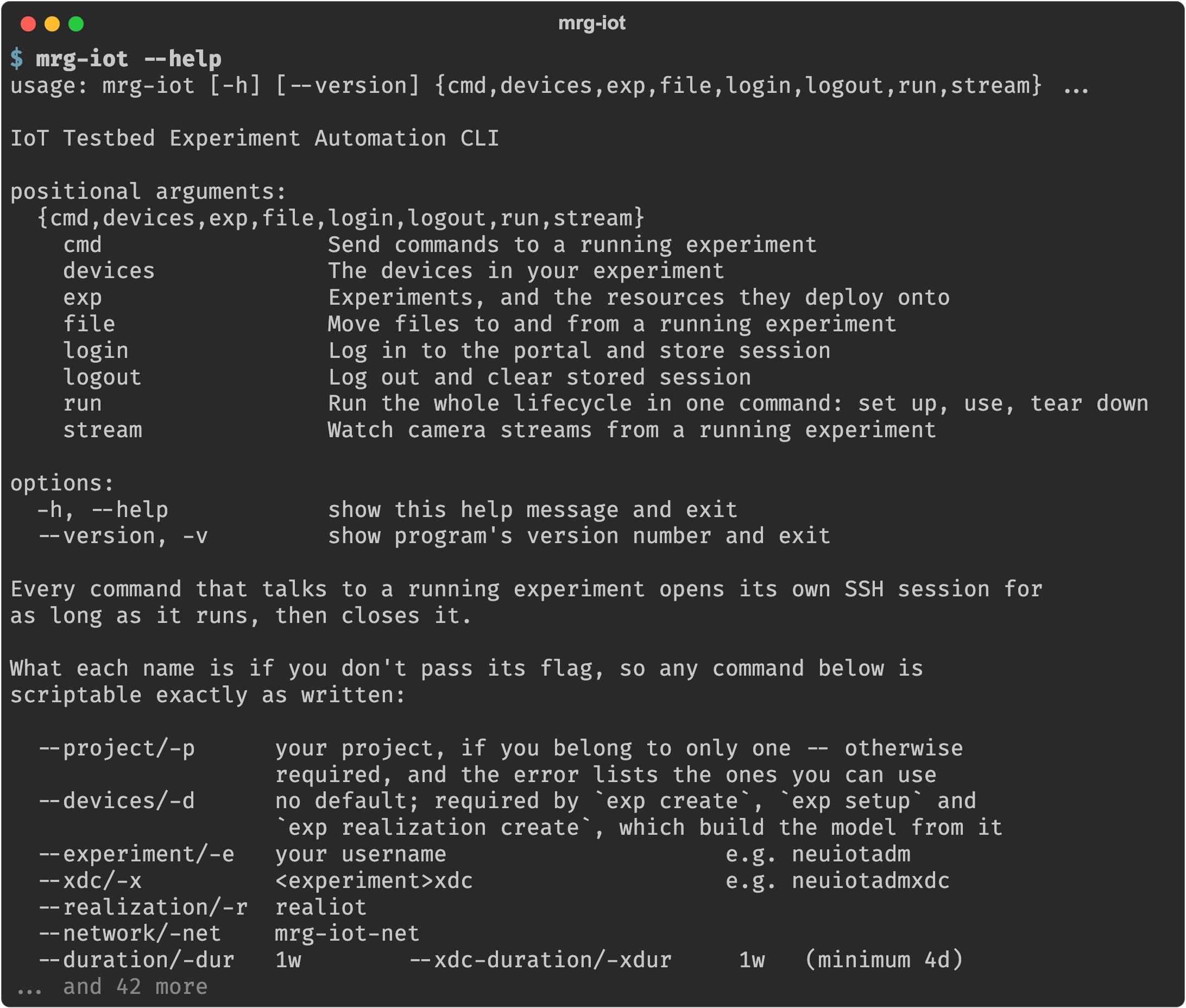
mrg-iot --help
--help is worth reading once: it lists every command group and, at the bottom, what each name defaults to if you don’t pass its flag. That is what makes every command in these guides scriptable exactly as written.
mrg-iot: command not foundpipx installs to ~/.local/bin, which may not be on your PATH. Run pipx ensurepath, open a new shell, and try mrg-iot --version again.
Media tools (optional)
Three external programs, each needed by exactly one command. None is a Python package, so pip and pipx cannot install them — use your OS package manager. Everything else in these guides works without them.
VLC, for stream open
Camera-equipped devices are proxied over RTSP. mrg-iot stream open launches VLC viewers for you, so install it if you want that. It is only needed for that one command: any RTSP-capable player works, and mrg-iot stream url prints the addresses so you can open them in whatever you already use.
| Platform | Command |
|---|---|
| macOS | brew install --cask vlc |
| Debian / Ubuntu | sudo snap install vlc |
| Fedora | sudo dnf install vlc |
| Windows | Download from videolan.org |
Confirm with vlc --version.
The apt build of VLC does not support RTSP streams, so stream open will fail with it installed. Install the snap instead.
ffmpeg, for stream push
mrg-iot stream push sends video the other way, giving a device something to watch. ffmpeg is what publishes it.
| Platform | Command |
|---|---|
| macOS | brew install ffmpeg |
| Debian / Ubuntu | sudo apt install ffmpeg |
| Fedora | sudo dnf install ffmpeg |
| Windows | winget install Gyan.FFmpeg |
Confirm with ffmpeg -version.
VLC is not an alternative here. Its stream-out feature turns VLC into an RTSP server, and sending video to the experiment's server needs a client that publishes to one.
Wireshark, for stream capture
mrg-iot stream capture shows the experiment's network traffic live, in Wireshark.
| Platform | Command |
|---|---|
| macOS | brew install --cask wireshark |
| Debian / Ubuntu | sudo apt install wireshark |
| Fedora | sudo dnf install wireshark |
| Windows | winget install WiresharkFoundation.Wireshark |
Confirm with wireshark --version. The macOS app and the Windows installer don't put Wireshark on your PATH; mrg-iot finds them in their default install locations anyway.
Wireshark only reads the stream here, so it doesn't need capture permissions on your machine. Without it, stream capture --write saves the traffic to a file or pipes it to another tool.
macOS: certificate errors
macOS Python often ships without a usable CA bundle, so portal calls fail with certificate verify failed. Export the certifi one:
export SSL_CERT_FILE="$(python -m certifi)"
export REQUESTS_CA_BUNDLE="$SSL_CERT_FILE"
Add both lines to your shell profile to make it stick. mrg-iot detects this case and prints the same two lines when it happens.
Next
- Quickstart: log in and drive a real device in a handful of commands.
- Using mrg-iot: the complete workflow, starting with account setup.
- Troubleshooting & FAQ: if the install or the first command fails.